How to fix inbox email disappear issue in Outlook?

Updated On - April 21, 2026
- Review the Inbox Rules.
- Check the Inbox or other folders.
- Use the Advanced Search feature.
- Clear the applied sortings or filters.
- Restart Outlook & check the internet connection.
Outlook emails missing from Inbox is one of the most frustrating issues for users. This creates unnecessary stress if the emails contain crucial information. Users think that their data is lost, but it is usually hidden, moved, or affected by a minor glitch. At first, it seems like a serious problem, while the solutions are often simpler than expected. Here, you will get to know the most effective solutions to find the lost emails quickly.
Why are Outlook emails missing from Inbox? – Know Causes
The disappearance of Inbox emails can be due to various reasons. Here they are:
- Applied filters can hide emails unintentionally.
- Incorrect view settings prevent emails from displaying.
- Damaged Outlook data files can cause emails to disappear.
- Accidental deletion or archiving can move the mailbox data.
- IMAP/Exchange sync issues can also be responsible for the error.
- Incorrect rule settings in Outlook may redirect emails to other folders.
Top 5 Manual Ways to “Fix Inbox Email Disappear Issue In Outlook”
We have deeply analyzed the above issue and shortlisted the effective methods for you. Try them individually to find the most appropriate ones.
Method 1. Check Deleted Items & Other Folder
View all the Outlook folders to find emails disappeared from Outlook Inbox. Make sure to check the Deleted Items folder, Archive folder, Junk folder, Spam folder, and Trash folder.
Method 2. Review the Outlook Rules
Incorrect rules may cause Outlook emails to disappear from the Inbox. Also, this affects how Outlook stores, displays, and moves the email messages. Here’s how to fix it:
- Open Outlook and click on Rules.
- Then select Manage Rules & Alerts.
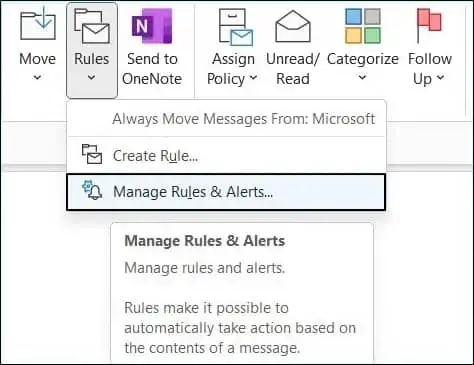
- Check if all the rules are marked correctly.
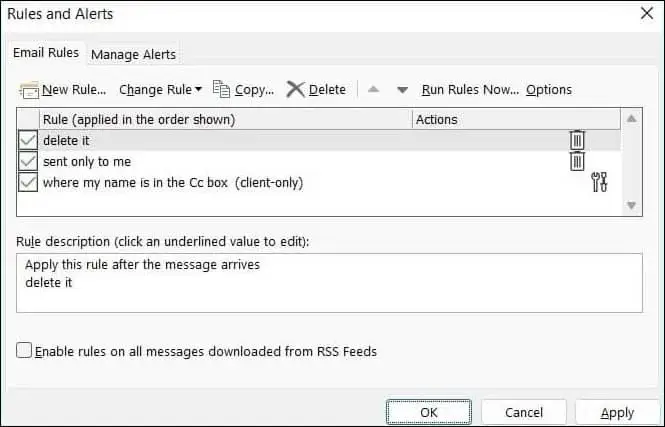
- Now, click on a rule to open details and change various conditions (as needed) to update.
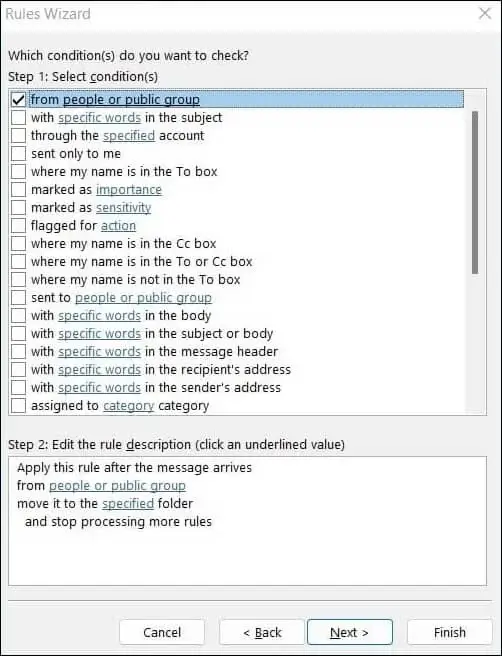
- You may update a rule if found incorrect. It may fix inbox email disappear issue in Outlook.
Method 3. Disable the Applied Filters
Incorrect Outlook filter settings could lead to emails disappearing from the Outlook inbox. The issue can also arise due to the View Settings that can automatically hide emails. Here are the complete steps:
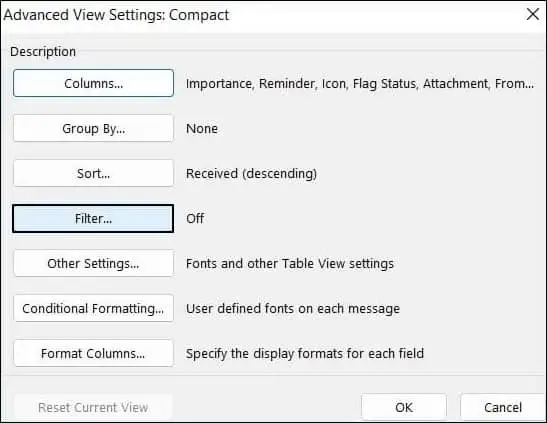
- Open Outlook, then go to View tab and click on View Settings.
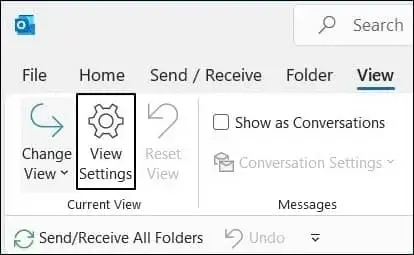
- In the newly opened window, click on the Filter option.
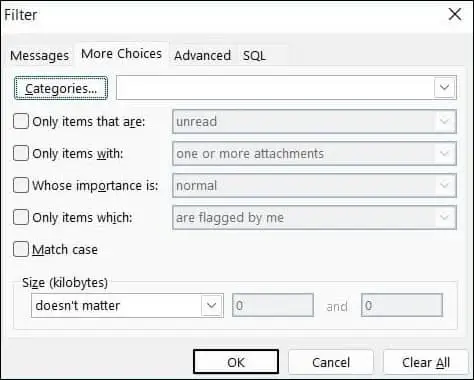
- Then go to More choices and make sure that all the filters are disabled. If any filter is enabled, uncheck it and click OK to save the changes.
Method 4. Use the Advanced Search Feature
You can search for emails disappeared from Outlook Inbox with the Advanced Search feature. Here’s how:
- Open Microsoft Outlook.
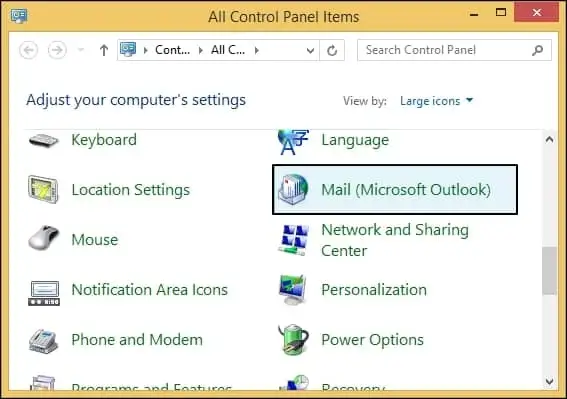
- In the search bar column, type Search tools.
- From the list of options, choose Advanced Find.
- Now, you need to enter the details of the emails and click on Find Now.
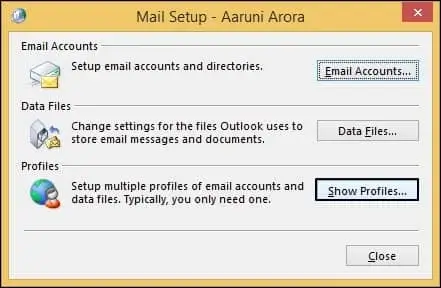
- Outlook will search and find the emails in a few minutes.
Method 5. Repair the Outlook Data File
The provided solutions will help you fix Outlook Inbox emails disappeared issues. If you are still facing the same error, then the Outlook data file is corrupted. You can use the built-in Inbox Repair Tool to repair the damaged files and remove minor corruptions.
But when the corruption is severe, the native approach fails to restore the original file state.
Therefore, taking the help of professional solution providers like Recoveryfix is more appropriate. The Outlook PST Repair tool repairs multiple damaged files in a single run. It also provides different saving formats for wider accessibility of your data.
Closure Note
We have covered a detailed guide to fix Inbox email disappear issue in Outlook. You have found the possible reasons behind the error, along with its corresponding solutions, in the blog. Use them now to fix the issue and resume your work today. If the native approaches failed, try to repair the Outlook data file with the recommended solution. The software handles the corruption of all levels without manual effort.
FAQs: Questions & Answer Section
Q- Why are my emails disappearing from the Outlook Inbox automatically?
A- This happens due to wrong filters, rules, auto-archive settings, or sync issues.
Q- Where do the missing Outlook emails go?
A- You can find the missing emails in:
- Junk folder
- Spam folder
- Trash folder
- Archive folder
- Deleted Items folder
Q- How can I get the disappeared emails back in Outlook?
A- You can try the following ways to get the disappeared emails back:
- Remove filters
- Check other folders
- Recover deleted items.
- Repair the Outlook data file.